在现代软件开发中,自动化测试变得越来越重要,而录屏功能则为测试结果的验证提供了直观的方式。通过结合Selenium、Xvfb和FFmpeg这三个强大的工具,我们可以在服务器上实现无头(headless)的录屏环境,这对于没有图形界面的服务器尤其有用。
Selenium是一个自动化测试工具,它可以模拟用户对网页的操作,如点击、输入文本等。Xvfb(X虚拟帧缓冲)提供了一个虚拟的显示环境,使得我们可以在不需要实际显示器的情况下运行图形应用程序。FFmpeg是一个强大的多媒体框架,能够处理视频和音频的录制、转换和流式传输。
将这三个工具结合起来,我们可以创建一个自动化的录屏流程,这个流程可以在后台运行,录制Selenium驱动的浏览器会话。这样,无论是进行自动化测试验证,还是生成用户操作教程,都可以通过这种方式来实现。
例如,我们可以使用Selenium启动一个浏览器会话,然后用Xvfb创建一个虚拟的显示环境来捕获这个会话的屏幕。接着,使用FFmpeg开始录制屏幕内容,直到测试完成。这个过程完全自动化,可以集成到持续集成/持续部署(CI/CD)的流程中,提高开发效率和质量。
环境准备
- 安装软件
1
2
3
4
5
6
7
8
9
10
11
12
13
14
15
16
| # 安装浏览器
wget https://dl.google.com/linux/direct/google-chrome-stable_current_amd64.deb
dpkg -i google-chrome-stable_current_amd64.deb
# 下载 chromedrive,选择合适的版本
# https://googlechromelabs.github.io/chrome-for-testing/
wget https://storage.googleapis.com/chrome-for-testing-public/123.0.6312.105/linux64/chromedriver-linux64.zip
unzip chromedriver-linux64.zip
mv chromedriver-linux64/chromedriver /usr/bin/
# 安装xvfb, ffmpeg
sudo apt install -y xvfb ffmpeg xrandr
# 安装selenium package
pip3 install selenium screeninfo # screeninfo 可以获取屏幕分辨率,为录屏做准备
|
Xvfb开启虚拟桌面
- 后台运行Xvfb开启虚拟桌面,终端将会默认在该桌面运行。此时能成功使用selenium控制浏览器
1
2
3
| Xvfb -ac :99 -screen 0 1024x768x16 &
export DISPLAY=:99
xrandr
|
- 使用xvfb-run开户虚拟桌面
1
| xvfb-run -a --server-args="-screen 0 1920x1080x24" xrandr # 在虚拟桌面下运行xrandr,运行完毕后,自动关闭桌面。可通过添加server参数 --server-args=" -displayID 99"指定display id.
|
-a : 自动使用不重复的DisplayId, 在运行的脚本中,可使用环境变量$DISPLAY来获取桌面ID,如:”:99”
使用selenium 控制浏览器
不同浏览器可设置不同的参数,以chrom浏览器为例:
1
2
3
4
5
6
7
8
9
10
11
12
13
| # 初始化driver
from selenium import webdriver
def local_chrome_driver():
option = webdriver.ChromeOptions()
option.add_experimental_option('useAutomationExtension', False)
option.add_experimental_option(
"excludeSwitches", ['enable-automation'])
option.add_argument("--disable-infobars")
option.add_argument("--guest")
option.add_argument("--log-level=3")
driver = webdriver.Chrome(options=option)
driver.maximize_window()
return driver
|
以上参数设置将便得浏览器打开更干净。获取driver后,便可通过selenium代码对其进行控制了。
使用ffmpeg开启录屏
不同的操作系统使用不同的参数,例如:开始录制20s视频
- windows
1
| ffmpeg -hide_banner -f gdigrab -i desktop -t 20 -f mp4 out.mp4
|
- Mac
1
| ffmpeg -hide_banner -f avfoundation -i '1:none' -t 20 -r 30 -y -f mp4 out.mp4
|
其中’1:none’为显示器与音频的编号。可通过命令ffmpeg -f avfoundation -list_devices true -i ""查看
3. Linux
1
| ffmpeg -hide_banner -video_size {width}x{height} -f x11grab -i {os.getenv("DISPLAY")} -t 20 -vcodec h264 -y -f mp4 out.mp4
|
录屏完整代码如下:
1
2
3
4
5
6
7
8
9
10
11
12
13
14
15
16
17
18
19
20
21
22
23
| import subprocess
import platform
from screeninfo import get_monitors
def record_screen_with_ffmpeg(self, duration, output_path):
ffmpeg_cmd = "ffmpeg"
platform_os = platform.system().lower()
if platform_os == 'windows':
ffmpeg_format = "-f gdigrab -i desktop -t {duration}"
elif platform_os == 'darwin':
ffmpeg_format = f"-f avfoundation -i '1:none' -t {duration} -r 30 -y "
elif platform_os == 'linux':
monitors = get_monitors()
monitor = monitors[0]
width = monitor.width
height = monitor.height
display_number = os.getenv("DISPLAY")
ffmpeg_format = f" -video_size {width}x{height} -f x11grab -i {display_number} -t {duration} -vcodec h264 -y "
else:
raise Exception("Unsupported platform")
command = f"{ffmpeg_cmd} -hide_banner {ffmpeg_format} -f mp4 {output_path}"
print(f"start record screen: {command}")
subprocess.call(command, shell=True, stdin=subprocess.PIPE)
print(f"completed record. save mp4 file to {output_path}")
|
补充ffmpeg工具
- ffmpeg 工具可以方便对视频进行压缩, vcodec可选择编码格式,其中编码名中有nv字符串,则会利用nvidia gpu加速压缩,
1
2
3
4
5
6
| ## cpu 编码
ffmpeg -i ./source.mp4 -vcodec libx264 -acodec aac dest.mp4
ffmpeg -i ./source.mp4 -vcodec libx265 -acodec aac dest.mp4
## gpu 编码
ffmpeg -i ./source.mp4 -vcodec h264_nvenc -acodec aac dest.mp4
ffmpeg -i ./source.mp4 -vcodec hevc_nvenc -acodec aac dest.mp4
|
| -vcodec 参数 |
含义说明 |
| copy |
复制原始视频流解码器,不重新编码。 |
| libx264 |
将视频压缩为H.264格式。 |
| libx265 |
将视频压缩为H.265/HEVC格式。 |
| h264_nvenc |
使用NVIDIA GPU硬件加速进行H.264编码。 |
| hevc_nvenc |
使用NVIDIA GPU硬件加速进行H.265/HEVC编码。 |
| h264_qsv |
使用Intel Quick Sync Video硬件加速进行H.264编码。 |
| hevc_qsv |
使用Intel Quick Sync Video硬件加速进行H.265/HEVC编码。 |
| libvpx |
将视频压缩为VP8或VP9格式(通过-b:v指定压缩比特率)。 |
| huffyuv |
生成无损视频。 |
- ffmpeg 可对mp4文件进行diff
1
2
3
4
5
| ## 生成一个差值视频
ffmpeg -i video1.mp4 -i video2.mp4 -filter_complex "[0:v][1:v]blend=all_mode='difference'" -y diff.mp4
## 计算视频相似度,结果存放在diff_ssim.log
ffmpeg -i video1.mp4 -i video2.mp4 -filter_complex "[0:v][1:v]ssim=diff_ssim.log" -f null -
|
对比前需确保两个视频的分辨率和帧率相同,否则FFmpeg可能无法正确处理。如果两个视频的规格不一致,需要先对其进行转码,使它们匹配后再进行差异比较。
使用 x11vnc 远程访问服务器应用界面
- 安装x11vnc
在服务器上安装 x11vnc。可以通过以下命令进行安装
1
| sudo apt install x11vnc -y
|
- 启动 Xserver
启动一个虚拟的 Xserver。使用 Xvfb 可以创建一个虚拟显示器
1
| Xvfb -ac :99 -screen 0 1024x768x16
|
- 设置x11vnc密码
为了确保连接的安全性,您需要为 x11vnc 设置一个访问密码。运行以下命令来设置密码
默认情况下,密码会保存在 ~/.vnc/passwd 文件中。
4. 启动 x11vnc
启动 x11vnc 并指定使用虚拟显示器 :99:
1
| x11vnc -display :99 -rfbport 5900 -forever -shared -rfbauth ~/.vnc/passwd
|
这将使 x11vnc 在虚拟显示器 :99 上运行,并通过端口 5900 提供 VNC 服务。
5. 在虚拟显示器中运行 Google Chrome
为了在远程访问中看到浏览器界面,您需要在虚拟显示器 :99 中启动 Google Chrome
1
2
| export DISPLAY=:99
google-chrome
|
- 通过 VNC 客户端访问 VNC 服务器
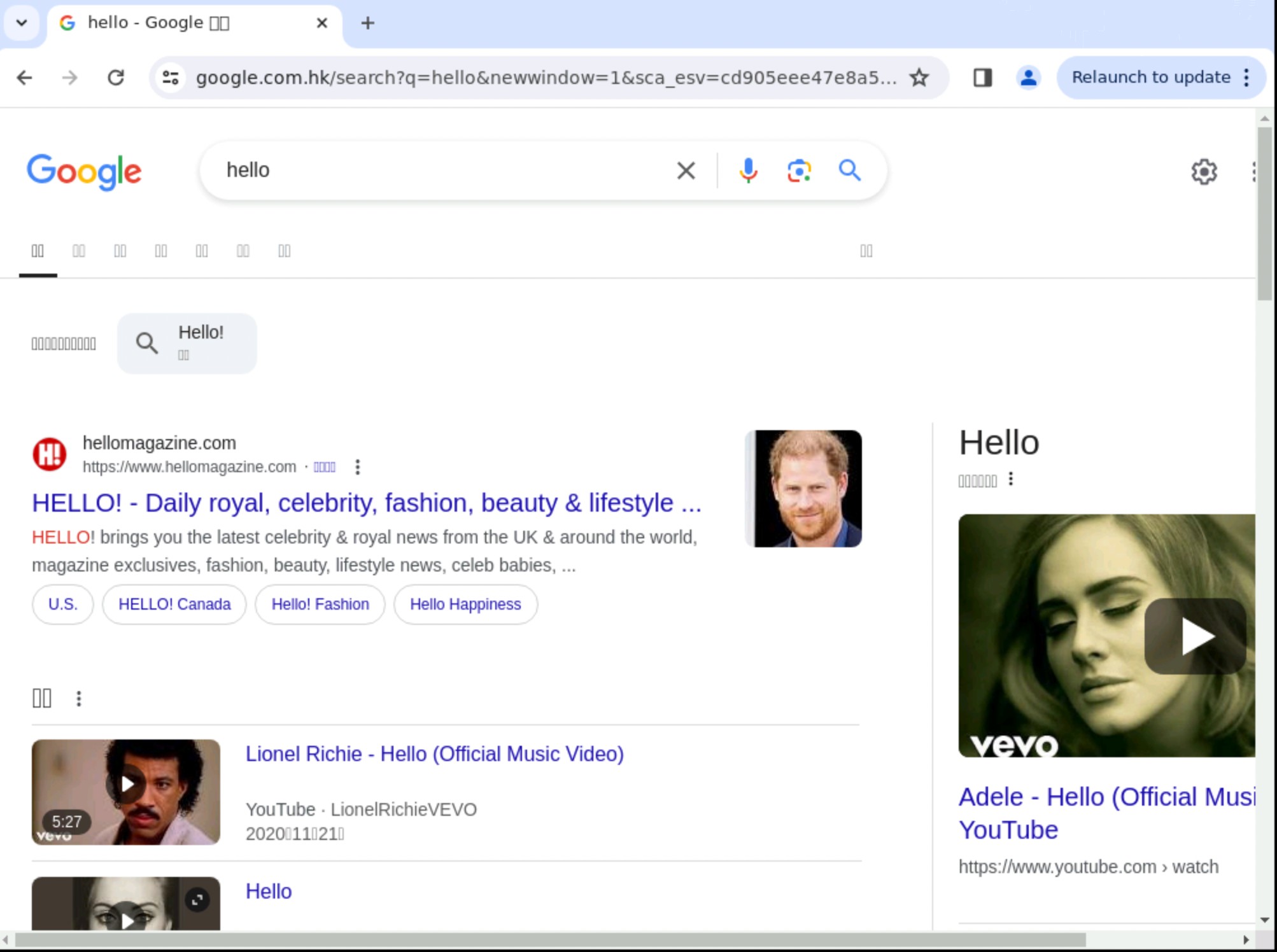
使用常规的 VNC 客户端连接到您的 VNC 服务器。输入服务器的 IP 地址和端口号(例如 192.168.1.100:5900),您将能够看到并控制服务器上的 Google Chrome 界面。
总结
通过Selenium、Xvfb和FFmpeg的结合使用,我们可以在服务器上实现高效、灵活的自定义录屏解决方案,为软件开发和测试提供了极大的便利。